
FREE RESOURCE · FROM CASE 001
The Lead Leak
Checklist.
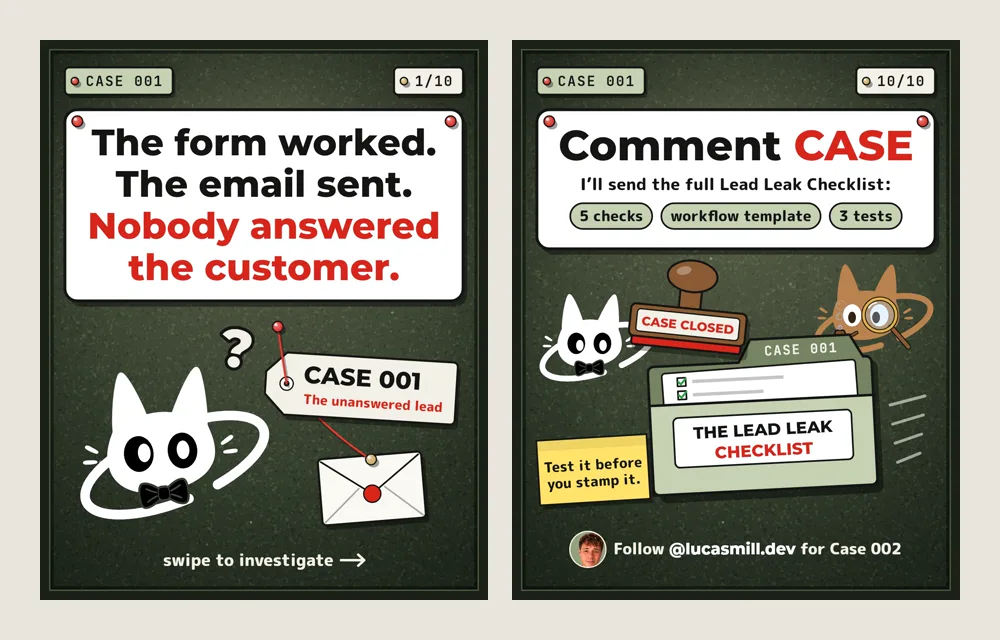
The form worked. The email sent. Nobody answered the customer. Here are the 5 checks, the workflow template and the 3 tests that close the gap.
THE CASE IN 30 SECONDS
The lead wasn’t lost.
The handoff was.
Someone added a new service, Maintenance, to the contact form. The routing rules only knew two services: web design went to Maya and SEO went to Sam.
The next Maintenance inquiry matched no rule, and there was no backup owner. The form saved it. The confirmation email reached the customer. The automation finished with nobody assigned, and every tool said “success” while the customer waited.
Case 001 is a fictional example; Maya, Sam and the customer are sample names. The checks work on any lead flow: a contact form, a quote request, a booking form or a DM.
PART 1 · THE 5 CHECKS
Five questions for
your lead flow.
Each check has a quick test you can run this week. Mark your result as you go; nothing on this page is saved or sent.
-
CHECK 1 OF 5
Is every inquiry saved?
If an inquiry never lands where your team works, nothing after it can run. Check every form, page and option, not just the main one.
Test itSend one test inquiry per service. Find each one where your team works: your CRM, shared inbox or sheet.
Case 001: saved ✓ The form was never the problem.
-
CHECK 2 OF 5
Does it get an owner automatically?
A lead without a named owner is everyone’s job, which means it is no one’s. A rule should set the owner the moment the inquiry is saved, not whenever someone notices it.
Test itOpen those test leads. Every single one should have a name in “assigned to”.
Case 001: no owner ✗ The new service had no routing rule.
-
CHECK 3 OF 5
Is that owner notified?
An assignment nobody sees is just a label. The alert should reach the owner where they actually work, with enough detail to reply.
Test itAsk each owner: did the alert reach you, and how fast?
Case 001: nobody to notify ✗ No owner, so no alert went out.
-
CHECK 4 OF 5
Is there a fallback for anything that matches no rule?
Forms change: a new service, an “Other” option, a blank field. Anything your rules don’t recognize should go to a named backup person, not into silence.
Test itPick an option no rule covers, like “Other”. A backup person should get it.
Case 001: no backup ✗ Nothing caught the leftover lead.
-
CHECK 5 OF 5
Does a missed reply trigger an alert?
Even a good handoff can stall: the owner is out, busy or missed the alert. Set a reply deadline and make sure someone hears about it when it passes.
Test itLeave one test lead unanswered for a day. Someone should get pinged.
Case 001: no alert ✗ The customer waited and nobody knew.
PART 2 · THE WORKFLOW TEMPLATE
One way in.
No dead ends.
Five steps from a new inquiry to a reply, plus one route for everything your rules don’t expect.
- 01InquirySaved with an ID, the service, contact details and the time it arrived.
- 02Assign owner by serviceA routing rule for each service sets the owner.
- 03NotifyThe owner hears about it where they work, with a link to the lead.
- 04Check for a logged replyAt your reply deadline, look for a reply recorded on the lead.
- 05Escalate if overdueNo reply logged? Alert a manager with the lead and how long it has waited.
No rule matches? The inquiry goes to a named backup owner, then step 03 runs as normal. Tell the backup why it fell through, so you can add the missing rule.
Your routing table
One row per service on your form, plus the catch-all. The names here are Case 001’s, after the fix.
| Service | Owner | Note |
|---|---|---|
| Web design | Maya | |
| SEO | Sam | |
| Maintenance | Maya | The missing rule, added |
| EVERYTHING ELSE | A named backup owner | Catches anything no rule matches |
Two habits that keep it working
- Change the form, change the rules. Any new option on the form gets a routing rule in the same edit. In Case 001 the form changed and the rules didn’t.
- Log replies on the lead. Step 04 can only see replies that are recorded: a status change, a note or an email sent from your CRM. A reply from a personal inbox looks like no reply.
LEAD HANDOFF TEMPLATE

WHEN a new inquiry arrives
  SAVE: ID, service, contact, time

1. ASSIGN AN OWNER BY SERVICE
   [service]        → [owner]
   [service]        → [owner]
   [service]        → [owner]
   EVERYTHING ELSE  → [backup owner]

2. NOTIFY the owner in [where they work]
   with: name, service, message, link

3. WAIT until [your reply deadline]

4. CHECK: is a reply logged on the lead?
   YES → done
   NO  → 5. ESCALATE: alert [manager]
         with the lead and the wait time

WHEN the form changes
  update the routing rules in the same edit
PART 3 · THE 3 TESTS
Test it before
you stamp it.
The quick tests above check one piece at a time. These three run the whole flow end to end. Use a test name and an email address you control, then archive the test leads afterwards.
TEST 1 OF 3
A normal request
- Do this
- Submit an inquiry for a service you already route.
- Expect
- It is saved, assigned to the right owner, and the owner is notified.
Case 001, after the fix: Maintenance → MayaASSIGNED ✓
TEST 2 OF 3
An unexpected or new service
- Do this
- Pick an option no rule covers, or add a test option such as “Logo design”.
- Expect
- It reaches the backup owner through EVERYTHING ELSE instead of nobody.
Case 001, after the fix: Logo design → everything else → backupBACKUP ✓
TEST 3 OF 3
An inquiry nobody answers
- Do this
- Submit one and don’t reply to it.
- Expect
- When the deadline passes, the manager gets an alert that names the lead.
Case 001, after the fix: No reply → managerALERT ✓
Run all three again whenever the form, your services or your team changes.